

Tested Minecraft Versions:
Lubenica
Test server
The server is always running the latest plugin version and the latest Minecraft version.
IP: 89.34.96.15:25589
Server provided by Nitrous Networks
Features
The system consists of three parts:
1. Spigot/CraftBukkit plugin
This part checks if player has ran the application which is used to scan if player has hacked client installed. Before running the application, player has restricted access to the server (eg. he is not allowed to move, to execute commands... - all that can be configured). When player runs the application which scans its Minecraft installation, the data is sent to the main server and then to the Spigot plugin. So the plugin receives the results and let the player play if it doesn't have any cheats installed, or run a command from configuration file if player has a cheat.
2. The application
The application scans player's Minecraft to see if he/she is running a cheat/hacked client. After that, it sends the results to the server which then does the rest.
3. Main server
The main server is used for the updating system and as a communication between the application and the plugin. It also sends the cheats filter to the application which allows it to determine if player is playing with cheats.
Some of you may think that this is a funny and unusual way of eliminating cheaters but, trust me, it is a good and precise way. I have been running a server with an average of 150 online players with this system. Although many of my players were young, they didn't have difficulties understanding what they have to do in order to play on the server. I must say that my players were very happy about that system because they could (finally) play normally, without cheaters. Also, my staff team had less to do - they did not have to monitor all the players one by one.
How to install it
1. Download the plugin
2. Put eFlame.jar in your "plugins" folder and restart your server. A config file and a welcome.txt will be generated at the following location: plugins/eFlame/.
3. Modify the configuration and welcome file as you wish and restart the server. Welcome file defines the message that will be sent to player that joins the server asking him to run the application.
4. The application which players have to run in order to play on the server can be downloaded from https://efla.me/#download. You can upload it somewhere and provide a link to your players or you can just give them this link which will always refer to the latest application version.
Sponsored by

I totally recommend Nitrous Networks, not just because they are sponsoring this project but because I used their services when I had a server running and I can really say they are the best of all that I tried (tried like 5-6 hosting companies). Fast answering and polite support team, excellent performance and great network!
Go with this guys, you won't go wrong!
Frequently asked questions
Q: Will eFlame make harm to my computer? My antivirus software detects it as malicious!
A: eFlame will not make harm to your computer in any way. If your antivirus software flags it as a virus, please contact me so I can report the false-positive to the antivirus software company.
Here is VirusTotal report for the Windows application.
Q: I have multiple BungeeCord instances and the plugin does not work properly for me, did I do something wrong?
A: You did not configure the plugin correctly. If you have multiple BungeeCord instances running, you have to list all the instance's IPs in plugin's configuration file under "multiple_ips" in format IP: PORT (without the space between : and P, I added that space because if I didn't, a smiley would have appeared)
It could be an alternative to screen sharing
Many servers are practicing asking players which they suspect are using a cheat to give them a screen share (via Skype, Screenleap or something else). In other words, they are asking players to show them the screen of their computer so they can see if they are really using a cheat. The problem in that is that admins then have to wait for the players to give them a screen share and they can hardly check more then one player at the time.
If you set "check_command_enabled" to true in the configuration file, players will not have to go through the check (run the application) on every join, but only when an admin asks them to do so. For example, an admin suspects that player "abcd" is using cheats. He will then execute command /ef check abcd so the player abcd would have to go through the check - he will be asked to run the application and he will have restricted access (he won't be able to move, to execute commands and so on) until he does.
Configuration file
Code (Text):
##################################################################################################################################
# eFlame configuration file #
# #
# If you need any help regarding the plugin feel free to contact me here: https://www.spigotmc.org/conversations/add?to=Lubenica #
##################################################################################################################################
# Do you want your players to be asked for the check on join?
check_on_join: true
# Do you want to be able to use /ef check <nick> command instead of forcing players to go through the check on join?
# This could be a better and simplier alternative to screensharing many servers are nowadays using to check their players for cheats
check_command_enabled: false
# Remove player from checking queue (if he was added to it using /ef check <nick> command) when he leaves the server
remove_from_queue_on_leave: false
# Set to true if you want to be able to remove a player from queue by typing /ef check <nick> command (again)
queue_command_remove: true
# Set to true if you want the checking process to be optional.
checking_optional: false
# Do you want a command to be executed if player doesn't finish the checking within a specified time
command_if_not_done:
# Set to true to enable
enabled: false
# Which commands will be executed ({PLAYER} replaces player's name)
commands:
- ''
- ''
# If the player doesn't finish the check within a time, the specified command will be executed (in seconds!)
time: 60
# Set to true for things that you would like to be forbidden while waiting for player to run the application
restrictions:
# Players won't be able to move when set to true
movement: true
# Players won't be able to send messages when set to true
chat: false
# Players won't be able to execute commands when set to true
commands: true
# Players won't be able to throw items from inventory when set to true
protect_inventory: true
# Players won't be able to interact with signs, buttons etc. when set to true
interactions: true
# Players won't be attacked by monsters when set to true
protect_from_monsters: true
# Players won't be able to open the inventory when set to true
inventory_open: true
# Message that will be sent to the player after he goes through the check and doesn't have a cheat
messages:
success: '&aThank you! You can play now and have fun =)'
# Command(s) that will be executed if player tries to join the server using cheats
punishment:
command:
- 'kick {PLAYER} Cheats are not allowed on this server!'
- ''
- ''
# Command(s) that are allowed to be executed by a player who is asked to go through the check
allowed_command:
- '/help'
# Command(s) that will be executed if a player whose hardware ID is banned tries to join the server
banned:
commands:
- "kick {PLAYER} Your hardware ID is banned from this server! \n Reason: {REASON}"
# Command(s) that will be executed if player does not have a cheat
no_cheat_command:
- ''
- ''
# Set to true if you want your admins who have ef.notify permission to be notified if someone tries to join using a cheat
notify_admins:
enabled: false
# Message which will be sent to the admins ({PLAYER} will be replaced with player's name, %clientname% will be replaced with the client name)
message: '&c{PLAYER} &fhas tried to join with a hacked client! (%clientname%)'
# Message which will be sent to admins ({PLAYER} will be replaced with player's name) if a player tries to join the server from a computer which hardware ID is banned
banned_message: '&c{PLAYER} &fhas tried to join from a banned computer!'
# Set true if you want all attempts of joining using a cheat to be logged to log.txt file
logging_enabled: true
# Should instructions for running the application be autobroadcasted to player every x ticks? (20 ticks = 1 second)
autobroadcast:
enabled: false
interval: '0'
# If you have multiple IP addresses using which you can join your server, list them here in format IP ORT
ORT
multiple_ips:
- ''
- ''
# Enable if you want to use your custom versions filter. See here how to create your filter - https://www.spigotmc.org/resources/eflame.17071/
use_custom_versions_filter: false
# Enable if you want Forge to be enabled on your server. See here how to create your mods filter - https://www.spigotmc.org/resources/eflame.17071/
use_filter_for_forge: false
# Enable if you want LiteLoader to be allowed on your server. See here how to create your mods filter - https://www.spigotmc.org/resources/eflame.17071/
use_filter_for_liteloader: false
# List commands which will be executed on the Spigot server when player who is in a queue for the check (when using /ef check command)
# leaves the server during the check
left_during_check_punishment_command_spigot:
- ''
- ''
# List commands which will be executed right when player is asked to go through the check
command_before_check:
- ''
- ''
# If you want your players not to be checked on every join, but every x join, set a number here
check_every_x_join: 0
# If you want your players not to be checked on every join, but be checked in case of x%, set a number here (1-100)
x_chance_to_be_checked: 0
# If you want titles to be shown when a player is asked to go through the check set "enabled" to true
titles:
enabled: false
title: ''
subtitle: ''
# Duration how long the title will be visible (in seconds)
duration: 10
# If you want to limit number of times a player can be checked in one session using /ef check command, set a number here
max_checks_per_session: 0
# Set 'enabled' to true if you want a sound to be played to a player who goes through the check without using a cheat
sound_nocheat:
enabled: true
# Put in value of a sound which you can find here: https://hub.spigotmc.org/javadocs/bukkit/org/bukkit/Sound.html
sound: 'ENTITY_PLAYER_LEVELUP'
# Commands which will be executed when player joins the server no matter if he is asked to go through the check or not
on_join_commands:
- ''
- ''
# Commands which will be executed when player leaves the server no matter if he was asked to go through the check or not
on_leave_commands:
- ''
- ''
BungeeCord support
When you are using BungeeCord, you can configure so that:
Commands
/ef - shows the installed and the latest plugin version
/ef check <nick> - request player to go through the check
/ef player <nick> - shows the list of every player join and tells whether player joined using a cheat or not
/ef banlist - shows all banned players
/ef ban <nick> <reason> - bans player's hardware ID
/ef unban <nick> - removes player from banlist
Permissions
eflame.bypass.all - player with this permission cannot be checked on join or when somebody executes /ef check command on him
eflame.bypass.join - player with this permission cannot be checked on join
eflame.bypass.command - player with this permission cannot be checked when somebody executes /efcheck command on him
eflame.command.check - allows usage of the /ef check <nick> command
eflame.command.player - allows usage of the /ef player <nick> command
eflame.command.ban - allows usage of the /ef ban <nick> <reason> command
eflame.command.unban - allows usage of the /ef unban <nick> command
eflame.command.banlist - allows usage of the /ef banlist command
eflame.notify - players (admins) with this permission will be notified in game with a message if a player tries to join the server using a cheat (if enabled in config!)
Note: Players who are OP automatically have the bypass permission and therefore they don't need to run the application.
Custom versions (clients) filter
You can create your own filter - choose with which versions (clients) your player will be able to join. To do that, do the following:
You can make a list of mods which are going to be allowed on your server.
If you want some Forge mods to be allowed on your server, put them in plugins/eFlame/filter_forge/ folder, set use_filter_for_forge to true in config and restart the server.
If you want some LiteLoader mods to be allowed on your server, put them in plugins/eFlame/filter_liteloader/ folder, set use_filter_for_liteloader to true in config and restart the server.
Custom application
The default Windows application looks like that:
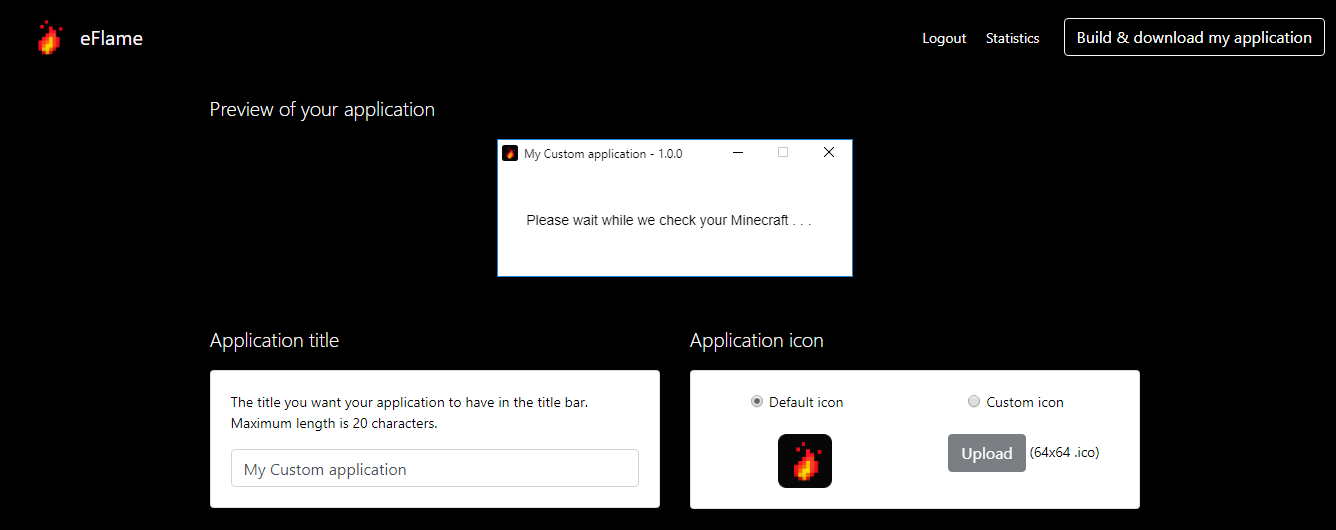
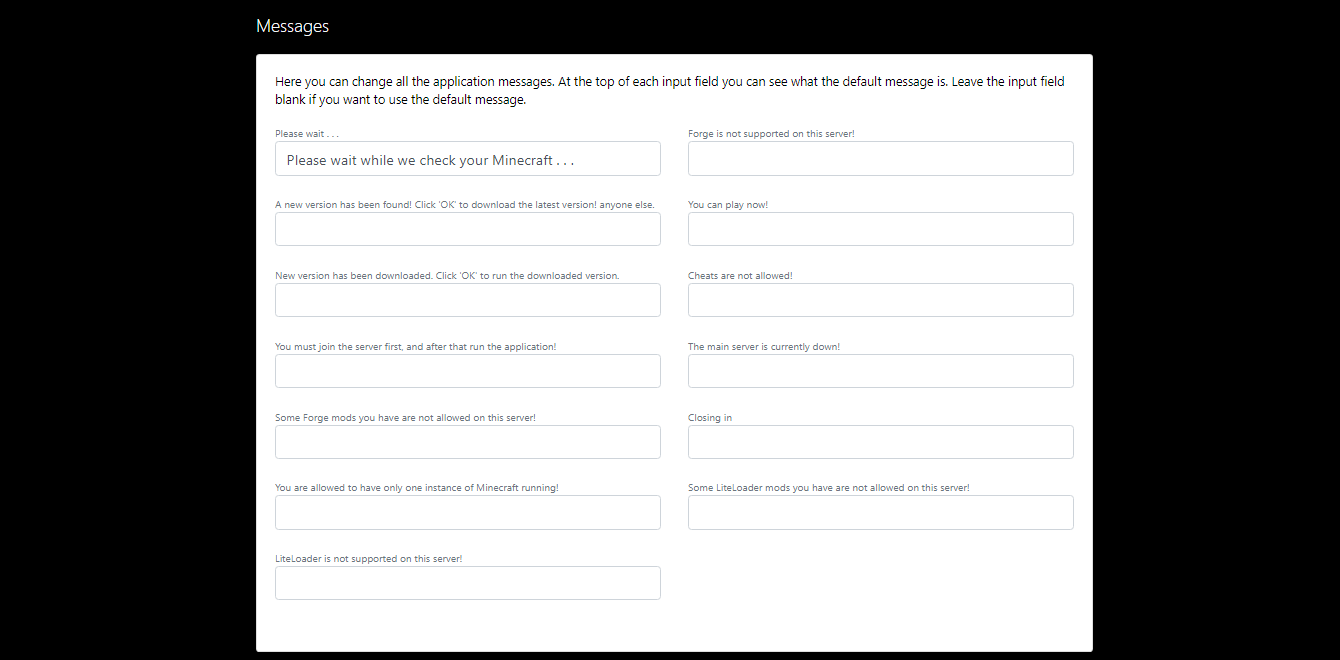
However, there is an option to change the application icon, title and messages as you wish, so it can look like that:
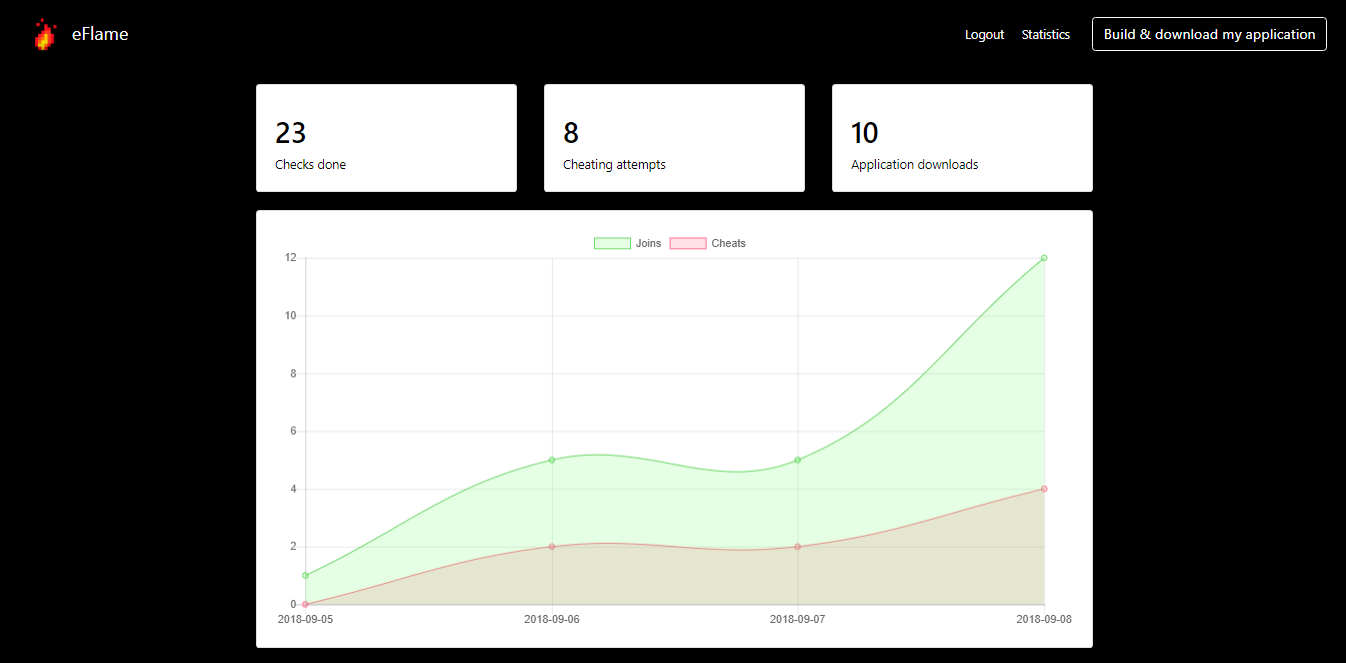
This option costs additional 5$ and can be purchased here. Purchasing this option gives you the following:
API
me.efla.API.API.sendCheckRequest(player, boolean);
- player - player you want to get checked
- boolean - true if you want to send the player the message from welcome.txt or false if you don't want to send him a message
me.efla.API.PlayerCheckedEvent
- getPlayer() (player) - returns the player who went through the check
- hasCheat() (boolean) - returns true if player tried joining using a cheat, false if he didn't have any cheats
Which cheats does it block
eFlame works on the principle of whitelisting. All legit (original) versions of Minecraft and all Optifine versions are whitelisted by default and only with them you can join the server.
However, you can create your custom list of allowed versions and a list of allowed mods (Forge, LiteLoader)
Compatibility
The plugin works on any Minecraft server version above 1.7 (including 1.7).
The application is compatible for Windows, Linux OS and Mac OS.
Support
If you need any help, you found a bug, want a feature to be added or something is not working for you, please send me a private message here.
If something is not working well for you, please don't go straight forward to the reviews section and give the plugin a bad rating. Please report the problem first so I can fix it.
Thank you!
- 1.7
- 1.8
- 1.9
- 1.10
- 1.11
- 1.12
- 1.13
Lubenica
Test server
The server is always running the latest plugin version and the latest Minecraft version.
IP: 89.34.96.15:25589
Server provided by Nitrous Networks
Features
- fast and lightweight - players are being checked client side, which means the checks are not done on the server which results zero lag to the server
- you can choose which versions (clients) and mods your players will be able to join with
- your players can be asked to go through the check on every join OR they can be asked to go through the check only if you run /ef check <nick> command on them
- active development - this project is being actively developed. I am open for new feature requests and of course for bug reports
- hardware ID bans - you can ban your player's hardware ID so he won't be able to return to your server under a different nickname
- custom application - you can create your own custom application and change its title, icon and messages
The system consists of three parts:
1. Spigot/CraftBukkit plugin
This part checks if player has ran the application which is used to scan if player has hacked client installed. Before running the application, player has restricted access to the server (eg. he is not allowed to move, to execute commands... - all that can be configured). When player runs the application which scans its Minecraft installation, the data is sent to the main server and then to the Spigot plugin. So the plugin receives the results and let the player play if it doesn't have any cheats installed, or run a command from configuration file if player has a cheat.
2. The application
The application scans player's Minecraft to see if he/she is running a cheat/hacked client. After that, it sends the results to the server which then does the rest.
3. Main server
The main server is used for the updating system and as a communication between the application and the plugin. It also sends the cheats filter to the application which allows it to determine if player is playing with cheats.
Some of you may think that this is a funny and unusual way of eliminating cheaters but, trust me, it is a good and precise way. I have been running a server with an average of 150 online players with this system. Although many of my players were young, they didn't have difficulties understanding what they have to do in order to play on the server. I must say that my players were very happy about that system because they could (finally) play normally, without cheaters. Also, my staff team had less to do - they did not have to monitor all the players one by one.
How to install it
1. Download the plugin
2. Put eFlame.jar in your "plugins" folder and restart your server. A config file and a welcome.txt will be generated at the following location: plugins/eFlame/.
3. Modify the configuration and welcome file as you wish and restart the server. Welcome file defines the message that will be sent to player that joins the server asking him to run the application.
4. The application which players have to run in order to play on the server can be downloaded from https://efla.me/#download. You can upload it somewhere and provide a link to your players or you can just give them this link which will always refer to the latest application version.
Sponsored by
I totally recommend Nitrous Networks, not just because they are sponsoring this project but because I used their services when I had a server running and I can really say they are the best of all that I tried (tried like 5-6 hosting companies). Fast answering and polite support team, excellent performance and great network!
Go with this guys, you won't go wrong!
Frequently asked questions
Q: Will eFlame make harm to my computer? My antivirus software detects it as malicious!
A: eFlame will not make harm to your computer in any way. If your antivirus software flags it as a virus, please contact me so I can report the false-positive to the antivirus software company.
Here is VirusTotal report for the Windows application.
Q: I have multiple BungeeCord instances and the plugin does not work properly for me, did I do something wrong?
A: You did not configure the plugin correctly. If you have multiple BungeeCord instances running, you have to list all the instance's IPs in plugin's configuration file under "multiple_ips" in format IP: PORT (without the space between : and P, I added that space because if I didn't, a smiley would have appeared)
It could be an alternative to screen sharing
Many servers are practicing asking players which they suspect are using a cheat to give them a screen share (via Skype, Screenleap or something else). In other words, they are asking players to show them the screen of their computer so they can see if they are really using a cheat. The problem in that is that admins then have to wait for the players to give them a screen share and they can hardly check more then one player at the time.
If you set "check_command_enabled" to true in the configuration file, players will not have to go through the check (run the application) on every join, but only when an admin asks them to do so. For example, an admin suspects that player "abcd" is using cheats. He will then execute command /ef check abcd so the player abcd would have to go through the check - he will be asked to run the application and he will have restricted access (he won't be able to move, to execute commands and so on) until he does.
Configuration file
Code (Text):
##################################################################################################################################
# eFlame configuration file #
# #
# If you need any help regarding the plugin feel free to contact me here: https://www.spigotmc.org/conversations/add?to=Lubenica #
##################################################################################################################################
# Do you want your players to be asked for the check on join?
check_on_join: true
# Do you want to be able to use /ef check <nick> command instead of forcing players to go through the check on join?
# This could be a better and simplier alternative to screensharing many servers are nowadays using to check their players for cheats
check_command_enabled: false
# Remove player from checking queue (if he was added to it using /ef check <nick> command) when he leaves the server
remove_from_queue_on_leave: false
# Set to true if you want to be able to remove a player from queue by typing /ef check <nick> command (again)
queue_command_remove: true
# Set to true if you want the checking process to be optional.
checking_optional: false
# Do you want a command to be executed if player doesn't finish the checking within a specified time
command_if_not_done:
# Set to true to enable
enabled: false
# Which commands will be executed ({PLAYER} replaces player's name)
commands:
- ''
- ''
# If the player doesn't finish the check within a time, the specified command will be executed (in seconds!)
time: 60
# Set to true for things that you would like to be forbidden while waiting for player to run the application
restrictions:
# Players won't be able to move when set to true
movement: true
# Players won't be able to send messages when set to true
chat: false
# Players won't be able to execute commands when set to true
commands: true
# Players won't be able to throw items from inventory when set to true
protect_inventory: true
# Players won't be able to interact with signs, buttons etc. when set to true
interactions: true
# Players won't be attacked by monsters when set to true
protect_from_monsters: true
# Players won't be able to open the inventory when set to true
inventory_open: true
# Message that will be sent to the player after he goes through the check and doesn't have a cheat
messages:
success: '&aThank you! You can play now and have fun =)'
# Command(s) that will be executed if player tries to join the server using cheats
punishment:
command:
- 'kick {PLAYER} Cheats are not allowed on this server!'
- ''
- ''
# Command(s) that are allowed to be executed by a player who is asked to go through the check
allowed_command:
- '/help'
# Command(s) that will be executed if a player whose hardware ID is banned tries to join the server
banned:
commands:
- "kick {PLAYER} Your hardware ID is banned from this server! \n Reason: {REASON}"
# Command(s) that will be executed if player does not have a cheat
no_cheat_command:
- ''
- ''
# Set to true if you want your admins who have ef.notify permission to be notified if someone tries to join using a cheat
notify_admins:
enabled: false
# Message which will be sent to the admins ({PLAYER} will be replaced with player's name, %clientname% will be replaced with the client name)
message: '&c{PLAYER} &fhas tried to join with a hacked client! (%clientname%)'
# Message which will be sent to admins ({PLAYER} will be replaced with player's name) if a player tries to join the server from a computer which hardware ID is banned
banned_message: '&c{PLAYER} &fhas tried to join from a banned computer!'
# Set true if you want all attempts of joining using a cheat to be logged to log.txt file
logging_enabled: true
# Should instructions for running the application be autobroadcasted to player every x ticks? (20 ticks = 1 second)
autobroadcast:
enabled: false
interval: '0'
# If you have multiple IP addresses using which you can join your server, list them here in format IP
ORTmultiple_ips:
- ''
- ''
# Enable if you want to use your custom versions filter. See here how to create your filter - https://www.spigotmc.org/resources/eflame.17071/
use_custom_versions_filter: false
# Enable if you want Forge to be enabled on your server. See here how to create your mods filter - https://www.spigotmc.org/resources/eflame.17071/
use_filter_for_forge: false
# Enable if you want LiteLoader to be allowed on your server. See here how to create your mods filter - https://www.spigotmc.org/resources/eflame.17071/
use_filter_for_liteloader: false
# List commands which will be executed on the Spigot server when player who is in a queue for the check (when using /ef check command)
# leaves the server during the check
left_during_check_punishment_command_spigot:
- ''
- ''
# List commands which will be executed right when player is asked to go through the check
command_before_check:
- ''
- ''
# If you want your players not to be checked on every join, but every x join, set a number here
check_every_x_join: 0
# If you want your players not to be checked on every join, but be checked in case of x%, set a number here (1-100)
x_chance_to_be_checked: 0
# If you want titles to be shown when a player is asked to go through the check set "enabled" to true
titles:
enabled: false
title: ''
subtitle: ''
# Duration how long the title will be visible (in seconds)
duration: 10
# If you want to limit number of times a player can be checked in one session using /ef check command, set a number here
max_checks_per_session: 0
# Set 'enabled' to true if you want a sound to be played to a player who goes through the check without using a cheat
sound_nocheat:
enabled: true
# Put in value of a sound which you can find here: https://hub.spigotmc.org/javadocs/bukkit/org/bukkit/Sound.html
sound: 'ENTITY_PLAYER_LEVELUP'
# Commands which will be executed when player joins the server no matter if he is asked to go through the check or not
on_join_commands:
- ''
- ''
# Commands which will be executed when player leaves the server no matter if he was asked to go through the check or not
on_leave_commands:
- ''
- ''
BungeeCord support
When you are using BungeeCord, you can configure so that:
- players won't have to go through the check when they are switching between servers
- players won't be able to execute BungeeCord commands when being asked to go through the check (for example they won't be able to avoid the check by going to another server with command /server)
- Put the plugin in "plugins" folder in your BungeeCord server
- Put the plugin in "plugins" folder in your Spigot server(s) on which you want to use the plugin
- Make sure you have set "bungeecord: true" in spigot.yml file on the servers where you installed the plugin
- Start both the BungeeCord and the Spigot server(s).
Commands
/ef - shows the installed and the latest plugin version
/ef check <nick> - request player to go through the check
/ef player <nick> - shows the list of every player join and tells whether player joined using a cheat or not
/ef banlist - shows all banned players
/ef ban <nick> <reason> - bans player's hardware ID
/ef unban <nick> - removes player from banlist
Permissions
eflame.bypass.all - player with this permission cannot be checked on join or when somebody executes /ef check command on him
eflame.bypass.join - player with this permission cannot be checked on join
eflame.bypass.command - player with this permission cannot be checked when somebody executes /efcheck command on him
eflame.command.check - allows usage of the /ef check <nick> command
eflame.command.player - allows usage of the /ef player <nick> command
eflame.command.ban - allows usage of the /ef ban <nick> <reason> command
eflame.command.unban - allows usage of the /ef unban <nick> command
eflame.command.banlist - allows usage of the /ef banlist command
eflame.notify - players (admins) with this permission will be notified in game with a message if a player tries to join the server using a cheat (if enabled in config!)
Note: Players who are OP automatically have the bypass permission and therefore they don't need to run the application.
Custom versions (clients) filter
You can create your own filter - choose with which versions (clients) your player will be able to join. To do that, do the following:
- put all your .jar versions you want to be allowed on the server in the plugins/eFlame/filter_versions/ folder
- if you are not using Bungeecord, in your plugin config file on the Spigot server, set "use_custom_versions_filter" to true. If you are using Bungeecord do the same for the plugin installed on the Bungeecord
- restart the server - your players will only be able to connect to your server with the versions you placed in the filter folder
You can make a list of mods which are going to be allowed on your server.
If you want some Forge mods to be allowed on your server, put them in plugins/eFlame/filter_forge/ folder, set use_filter_for_forge to true in config and restart the server.
If you want some LiteLoader mods to be allowed on your server, put them in plugins/eFlame/filter_liteloader/ folder, set use_filter_for_liteloader to true in config and restart the server.
Custom application
The default Windows application looks like that:
However, there is an option to change the application icon, title and messages as you wish, so it can look like that:
This option costs additional 5$ and can be purchased here. Purchasing this option gives you the following:
- you can change the icon of the application
- you can change the title of the application
- you can change all the messages of the application
- the application will update itself with all your settings, you don't have to recreate your custom application on every new release
- separate statistics just for your server which look like that:
API
me.efla.API.API.sendCheckRequest(player, boolean);
- player - player you want to get checked
- boolean - true if you want to send the player the message from welcome.txt or false if you don't want to send him a message
me.efla.API.PlayerCheckedEvent
- getPlayer() (player) - returns the player who went through the check
- hasCheat() (boolean) - returns true if player tried joining using a cheat, false if he didn't have any cheats
Which cheats does it block
eFlame works on the principle of whitelisting. All legit (original) versions of Minecraft and all Optifine versions are whitelisted by default and only with them you can join the server.
However, you can create your custom list of allowed versions and a list of allowed mods (Forge, LiteLoader)
Compatibility
The plugin works on any Minecraft server version above 1.7 (including 1.7).
The application is compatible for Windows, Linux OS and Mac OS.
Support
If you need any help, you found a bug, want a feature to be added or something is not working for you, please send me a private message here.
If something is not working well for you, please don't go straight forward to the reviews section and give the plugin a bad rating. Please report the problem first so I can fix it.
Thank you!
![Gangs+ [1.8-1.19] 2.24.2](/data/resource_icons/16/16470.jpg?1782808321)

![Combat Tag Plus [1.8 Only] [Action Bar]](/data/resource_icons/5/5222.jpg?1782790862)

![EpicWorldGenerator MODERN [1.21.11 / 26.1.2] Now with Multiverse Support! (EWG)](/data/resource_icons/0/839.jpg?1782116339)