

Read the entire page before buying the plugin or asking questions. By purchasing this resource, you agree with the terms stated below.
If you have any issues, please contact Thiemo (@TrinityDEV support, not me) before posting a review. Support is only given to people who have purchased this resource. This will be checked.
Update: As of the latest version BannerBoard has support for banners on the ground and floor! :O
(Only supported by 1.13 clients)
A full documentation of the plugin's inbuilt renderers can be found here.
BannerBoard can show different banners to different players. You can also put the skin of the player on a banner!
As of version 1.7.0 BannerBoard also supports changing banners. Please note that for performance reasons I recommend not to set the update interval to lower than 30 seconds.
BannerBoard does not support animations. So it doesn't support .gif files either.
BannerBoard is not compatible with any Spigot 1.7 build or lower.
Are you looking for an awesome way to communicate with your players personally? Please keep reading!
BannerBoard does not require any client side modifications. Everything is run on the server side.
PlaceholderAPI support was added in version 1.3.5.
Shop implementation NOW available!
What is BannerBoard?
BannerBoard uses maps to render images in your server as banners. BannerBoard banners are dynamically rendered when a player logs in. Thank donators or encourage new players to visit your shop? It's possible! The possibilities are endless and BannerBoard is easy to use with its powerful and user friendly configuration. The rendered images are 128 x 128 pixels per block, that’s a higher quality than most resource packs are!
Lightweight
Performance is of great importance for every server owner, that is exactly this plugin was made with that in mind. Not only does the image rendering happen entirely on separated threads, but also is the BannerBoard color picking system more than twenty times faster than the inbuilt Spigot color picking system.
Check it out yourself
It is always better to see something with your own eyes. Feel free to join my test server and have a look at the four banners I have made as examples.
Requirements
BannerBoard is highly configurable. The config is very powerful and easy to use. If you can't figure out how it works, please check the video below about BannerBoard.
The view distance of the banners can be set in your spigot.yml by setting entity-tracking-range key misc to what you'd like the view distance to be (in blocks). BannerBoard automatically adapts to what's set in your spigot configuration file.
Code (Text):
entity-tracking-range:
players: 48
animals: 48
monsters: 48
misc: 32 <---- THIS ONE
other: 64
We start by creating the banner. I highly advise you to have no other players online when going through these steps.
As of version 1.3.5 you can use the few hundreds of placeholders PlaceholderAPI offers us. Just drop the PlaceholderAPI jar in your server, restart, and use the command /papi ecloud list all <pagenumber> to navigate through all available placeholder packages. Use this list to find out which ones you want to install. After installing the placeholders, you can simply use the placeholders for the BannerBoard TEXT renderer.
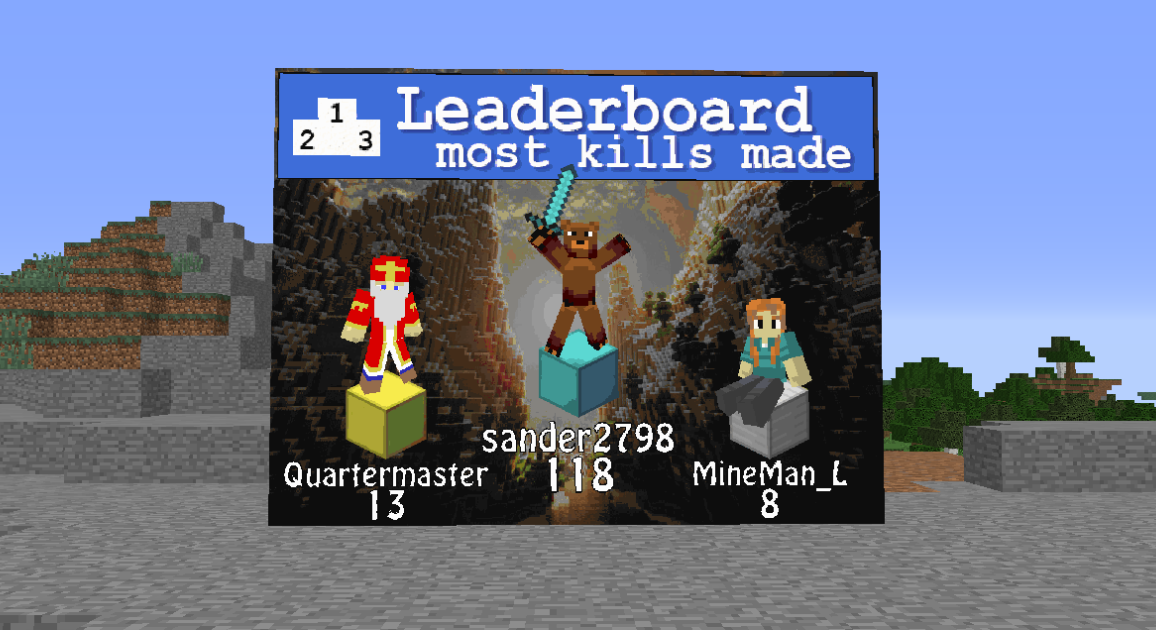
These are the four examples I made in the preview server, followed by their render configuration section. Renderers in the list are always called in order from top to bottom.
SpigotMC: https://www.spigotmc.org/resources/bannerboard.20435/
If you have any issues, please contact Thiemo (@TrinityDEV support, not me) before posting a review. Support is only given to people who have purchased this resource. This will be checked.
Update: As of the latest version BannerBoard has support for banners on the ground and floor! :O
(Only supported by 1.13 clients)
A full documentation of the plugin's inbuilt renderers can be found here.
BannerBoard can show different banners to different players. You can also put the skin of the player on a banner!
As of version 1.7.0 BannerBoard also supports changing banners. Please note that for performance reasons I recommend not to set the update interval to lower than 30 seconds.
BannerBoard does not support animations. So it doesn't support .gif files either.
BannerBoard is not compatible with any Spigot 1.7 build or lower.
Are you looking for an awesome way to communicate with your players personally? Please keep reading!
BannerBoard does not require any client side modifications. Everything is run on the server side.
PlaceholderAPI support was added in version 1.3.5.
Shop implementation NOW available!
What is BannerBoard?
BannerBoard uses maps to render images in your server as banners. BannerBoard banners are dynamically rendered when a player logs in. Thank donators or encourage new players to visit your shop? It's possible! The possibilities are endless and BannerBoard is easy to use with its powerful and user friendly configuration. The rendered images are 128 x 128 pixels per block, that’s a higher quality than most resource packs are!
Lightweight
Performance is of great importance for every server owner, that is exactly this plugin was made with that in mind. Not only does the image rendering happen entirely on separated threads, but also is the BannerBoard color picking system more than twenty times faster than the inbuilt Spigot color picking system.
Check it out yourself
It is always better to see something with your own eyes. Feel free to join my test server and have a look at the four banners I have made as examples.
Requirements
- Spigot 1.8 or higher.
- Images are cached on startup. Depending on how many images you have, I’d say the amount of memory this plugin uses is a few megabytes plus the size of your /images/ folder.
- A decent internet connection. Also make sure to enable packet compression at a threshold of 256 or less bytes. If you have packet compression disabled, make sure to turn it on. It is enabled by default.
- At least two cores so the main thread won’t suffer from the BannerBoard render threads.
- Java 7 or higher.
BannerBoard is highly configurable. The config is very powerful and easy to use. If you can't figure out how it works, please check the video below about BannerBoard.
The view distance of the banners can be set in your spigot.yml by setting entity-tracking-range key misc to what you'd like the view distance to be (in blocks). BannerBoard automatically adapts to what's set in your spigot configuration file.
Code (Text):
entity-tracking-range:
players: 48
animals: 48
monsters: 48
misc: 32 <---- THIS ONE
other: 64
We start by creating the banner. I highly advise you to have no other players online when going through these steps.
- Use the command /bannerboard create. This will give you two redstone blocks. There is no permission for the command, however it does require you to be a server operator.
- Place both blocks at an opposite corner (e.g. left bottom and right top). Please don't make your banner too big, BannerBoard might refuse to make it. Make sure to have a solid wall behind the banner and no blocks placed around the edges, these blocks should be placed later to prevent misplaced itemframes. Your wall should look something like this.
If you misplace a redstone block or you want to redo the placing, use the command /bb delete twice while you're looking at the banner to delete the banner. You can now start over again.
- When you open the configuration file now, you will see an internal section as well as a configurable section. Please don’t change any of the internal values, these are for internal use only. In the renderers section you will find the two default example renderers, add more lines or change the existing lines to whatever you want.
BannerBoard currently has seven inbuilt renderers. All renderers and its parameters are comprehensively explained on my wiki page, which you can find here.
- Make sure to always use the command /bb reload after changing anything in the renderer section of the configuration file.
As of version 1.3.5 you can use the few hundreds of placeholders PlaceholderAPI offers us. Just drop the PlaceholderAPI jar in your server, restart, and use the command /papi ecloud list all <pagenumber> to navigate through all available placeholder packages. Use this list to find out which ones you want to install. After installing the placeholders, you can simply use the placeholders for the BannerBoard TEXT renderer.
These are the four examples I made in the preview server, followed by their render configuration section. Renderers in the list are always called in order from top to bottom.
SpigotMC: https://www.spigotmc.org/resources/bannerboard.20435/
![EpicWorldGenerator MODERN [1.21.11 / 26.1.2 / 26.2] Now with Multiverse Support! (EWG)](/data/resource_icons/0/839.jpg?1782116339)


